
3.0 KiB
ocm_autopull
The following is instructions on how to process all OCM data (City of Edmonton contact form data) into a google sheet using appscript.
Using internal resources, this process builds a single spreadsheet with all available OCM emails from a users account.
This script was built as part of a larger system to visualize ocm data so that a councillor can be made informed regarding the location of ocm submissions:
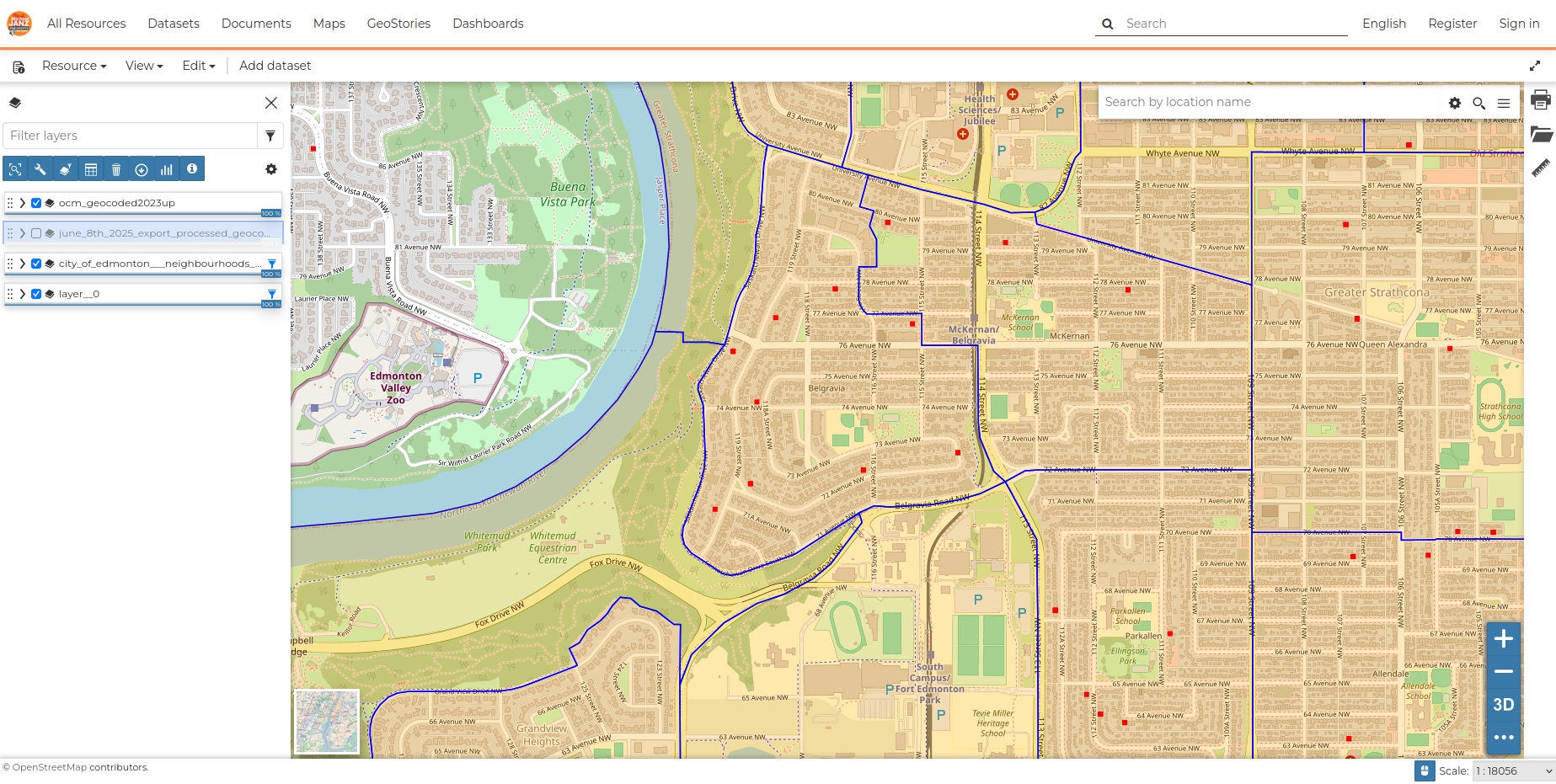
Also available are scripts to process OCM data for latitude and longitude for representation on mapping software. Please contact admin for these scripts.
How To
Step 1 - Create Label
In your gmail, create a new label called ocm_autopull
Search your email and label all OCM emails. For example:
To: councillors email
Has the words: This message is intended for Councillor councillor name and their staff.
Select all those emails and label them with the new label you just created.
Step 2 - Create Appscript Project
In your web browser go to
https://script.google.com/home/
And create a new project called ocm_autopull
Step 3 - Add Script to ocm_autopull project
In your new project, delete the function, and replace with the code from here:
Get Code
Review Code Functions Here
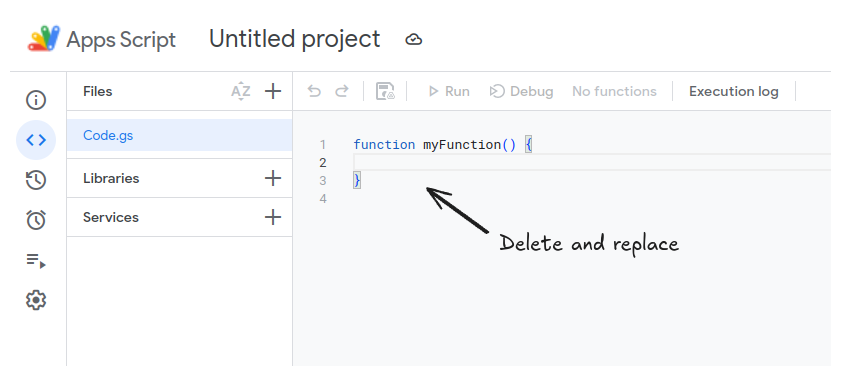
Remember to click save after you have copied your code over.
Configure
It is possible to configure your script using the configuration settings at the top. If you already have a gmail label for ocm's, you can update the label in the configuration section of the script:
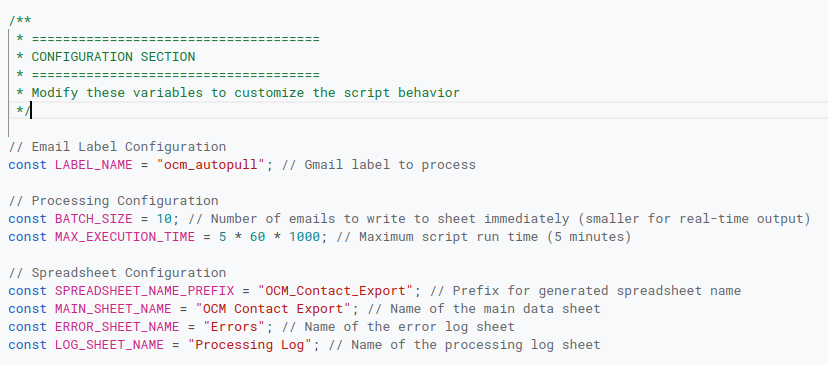
Step 4 - Test
After saving, you will have new functions available. The first function we want to run is the testSmallSample function. Select the function, then click run:
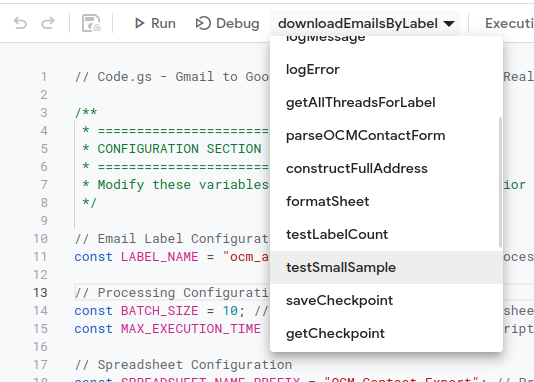
This will test a few emails from your ocm_autopull label and provide a readout. It
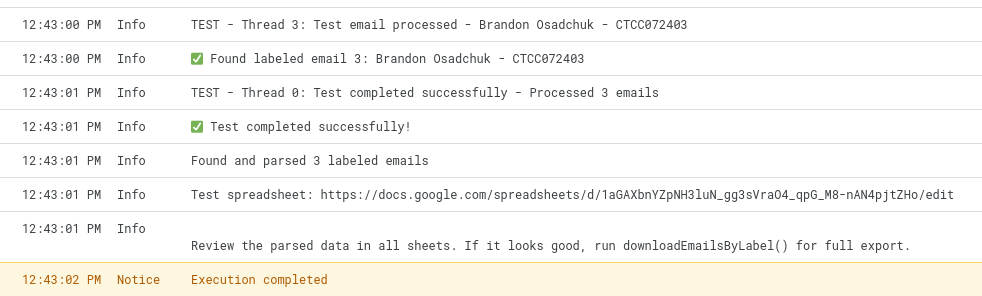
Review the sheet it produces and if it looks good continue to the next step.
Step 5 - Run Script
If test passes, you are ready to run the script. Select the function called downloadEmailsByLabel and click run:

Now wait for the system to run. It will take a few minutes, on average a minute per hundred emails.
The system also will run in 5 minute batches; this is so the script stays compliant with Google's requirements. Sometimes these batches will be in smaller increments; this is normal.
When you click run the script will output the location of the sheet. You can observer this sheet, and its logs, to see data being added in real time by your system.

Failure Case
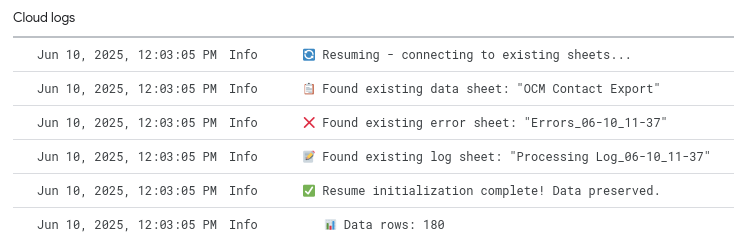
On occasion, google appscripts can fail. If this happens, you should be able to click run again and the script will continue processing emails as normal.
Total Breakage
If script fails entirely, delete the outputed spreadsheet, and try running it again.